What you need
- An Android phone or tablet running Android 6.0 or later.
- Battery Hero from Google Play (free, no ads).
1. Open Widget Studio
In Battery Hero, tap the widgets icon in the top bar (the four squares next to the star), or go to Settings → Widgets. You'll see the five ready-made styles: circle, classic, minimal, screen time and battery temperature. Scroll to the bottom and tap Build your own widget.
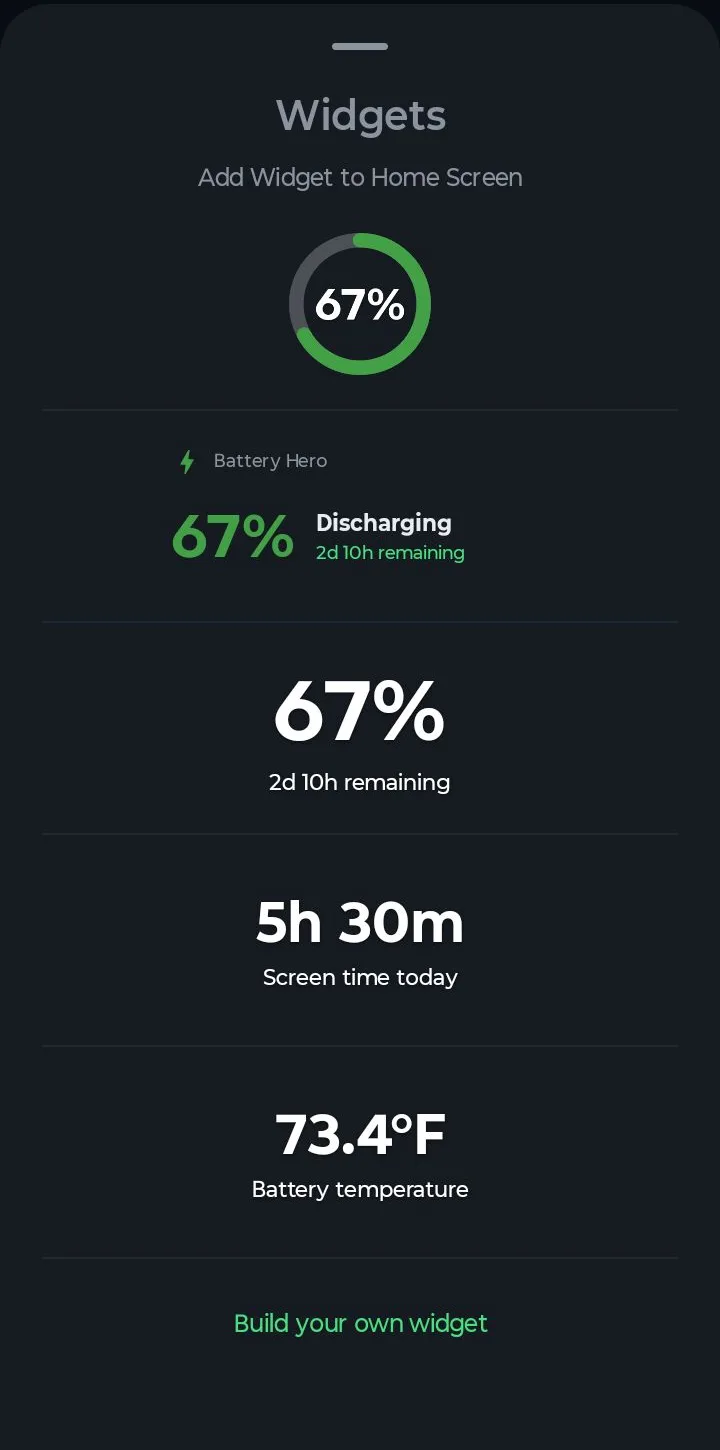
Widget Studio opens with a 2×1 widget showing your battery percentage. Everything you change shows up in the preview straight away — the preview is drawn with the same code as the real widget, so what you see is what lands on your home screen.
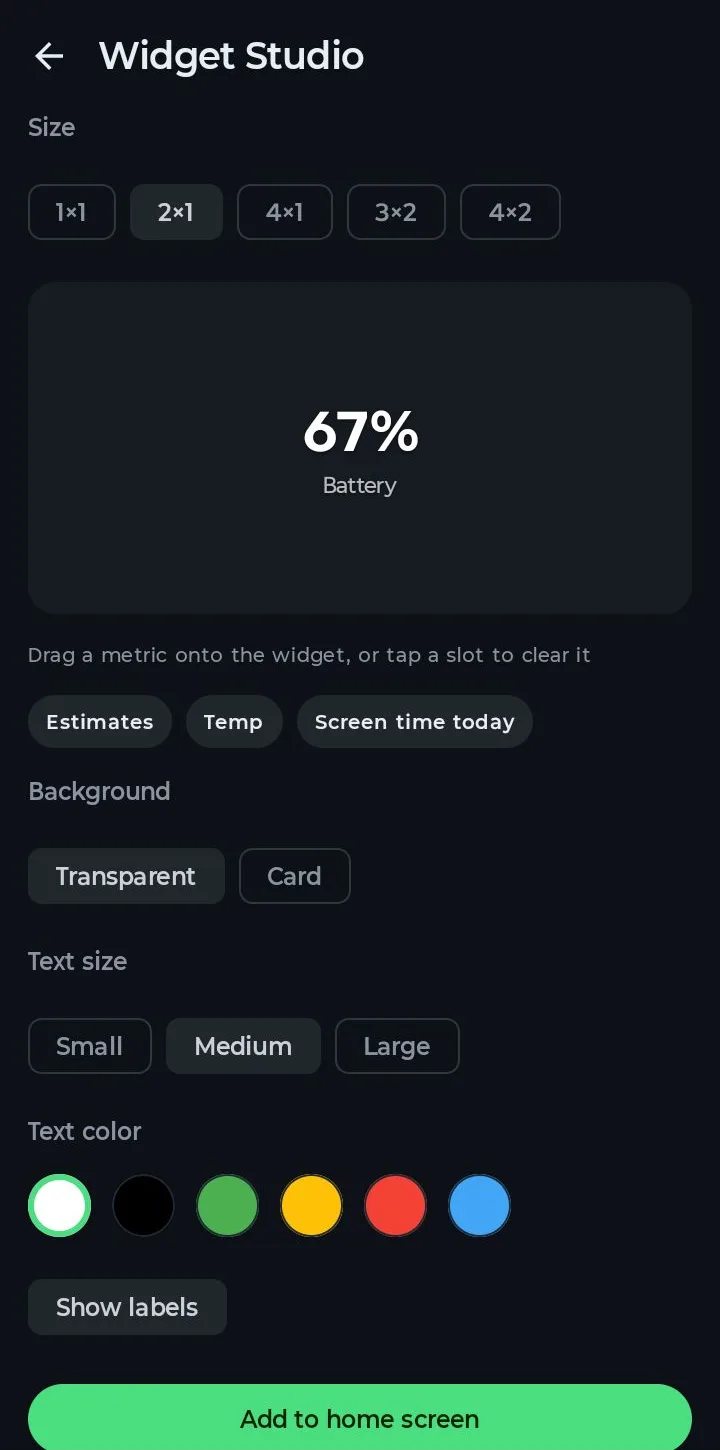
2. Pick a size
Sizes are in home screen cells. Each one has room for a different number of stats:
- 1×1 and 2×1 — one stat. Good for a single big number.
- 3×2 — two stats side by side.
- 4×1 — four stats in a row across the screen.
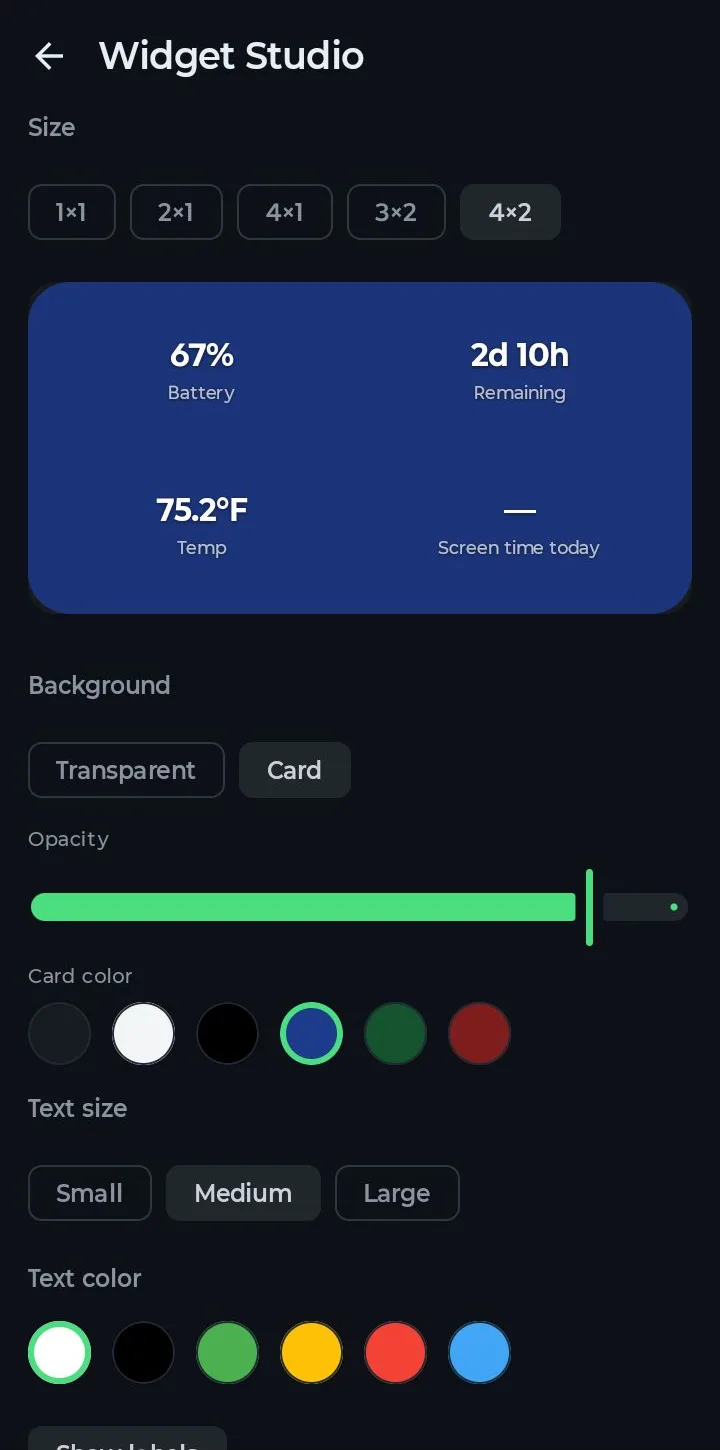
- 4×2 — four stats in a 2×2 grid.
The empty boxes in the preview are slots waiting for a stat. You can still resize the widget on your home screen later, and the layout stretches to fit.
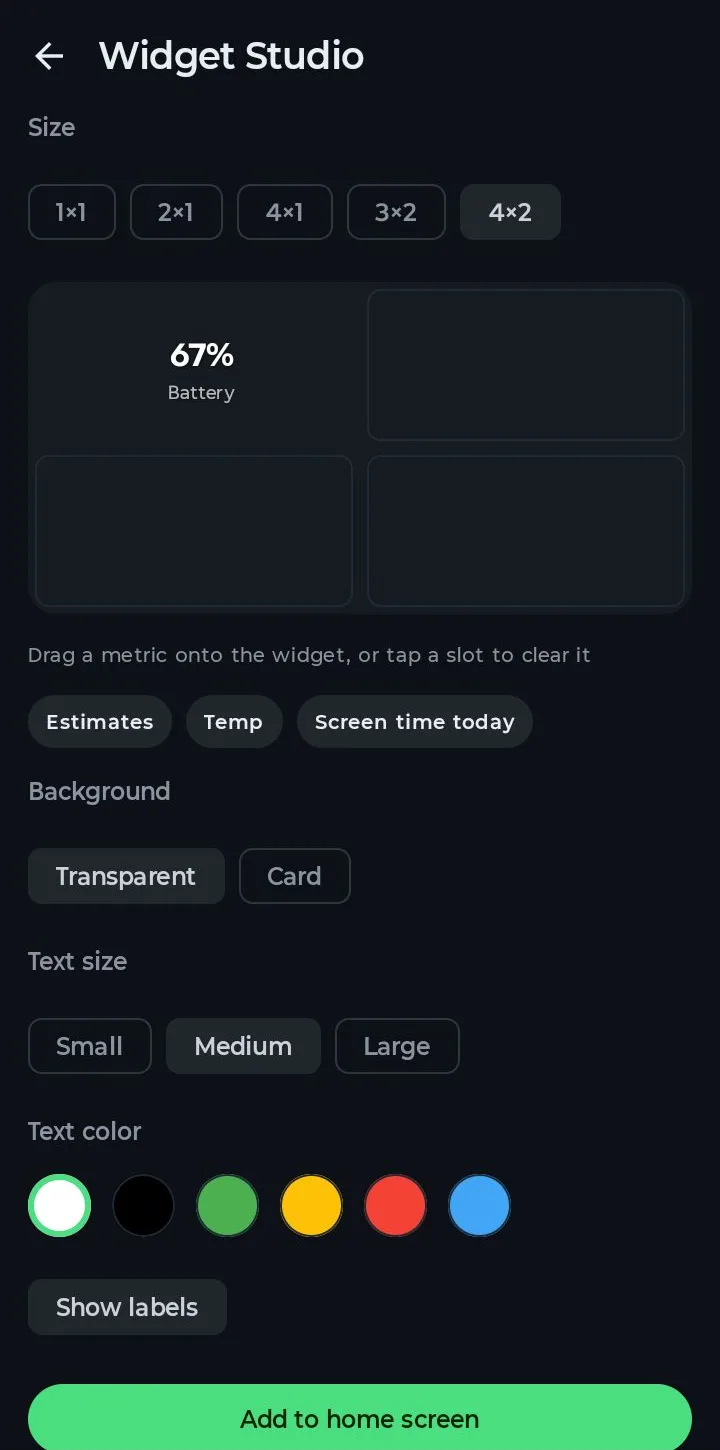
3. Drag in the stats you want
Under the preview are the stats you haven't used yet. Press and drag one onto an empty slot:
- Battery % — your current charge level.
- Estimates— time remaining while you're on battery, and time to full while charging.
- Temp— battery temperature, in °C or °F depending on your setting.
- Screen time today— how long your screen has been on since midnight.
To remove a stat, tap its slot. Screen time shows a dash (—) in the preview; the real number appears once the widget is on your home screen.
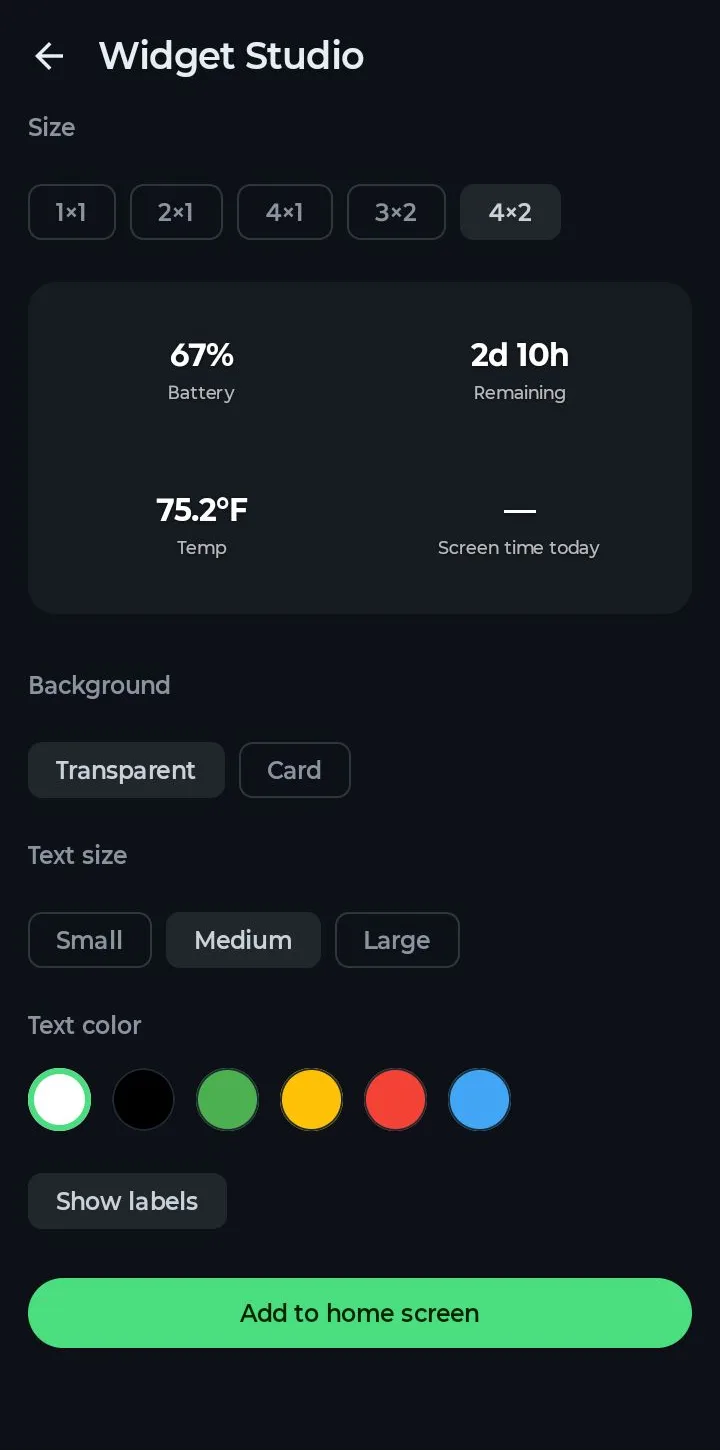
4. Style it
- Background — Transparent puts the text straight on your wallpaper; Card adds a rounded panel behind it.
- Opacity and Card color(card only) — choose from six colors and how see-through the card is.
- Text size — Small, Medium or Large.
- Text color — white, black, green, yellow, red or blue.
- Show labels — turn off the small captions under each number for a cleaner look.
A quick rule of thumb: on a plain or dark wallpaper, Transparent with white text looks the cleanest. On a busy photo, a Card keeps the numbers readable.
5. Add it to your home screen
Scroll down and tap Add to home screen. Your launcher shows a preview of the widget — tap Add, and it lands on your home screen at the size you picked.
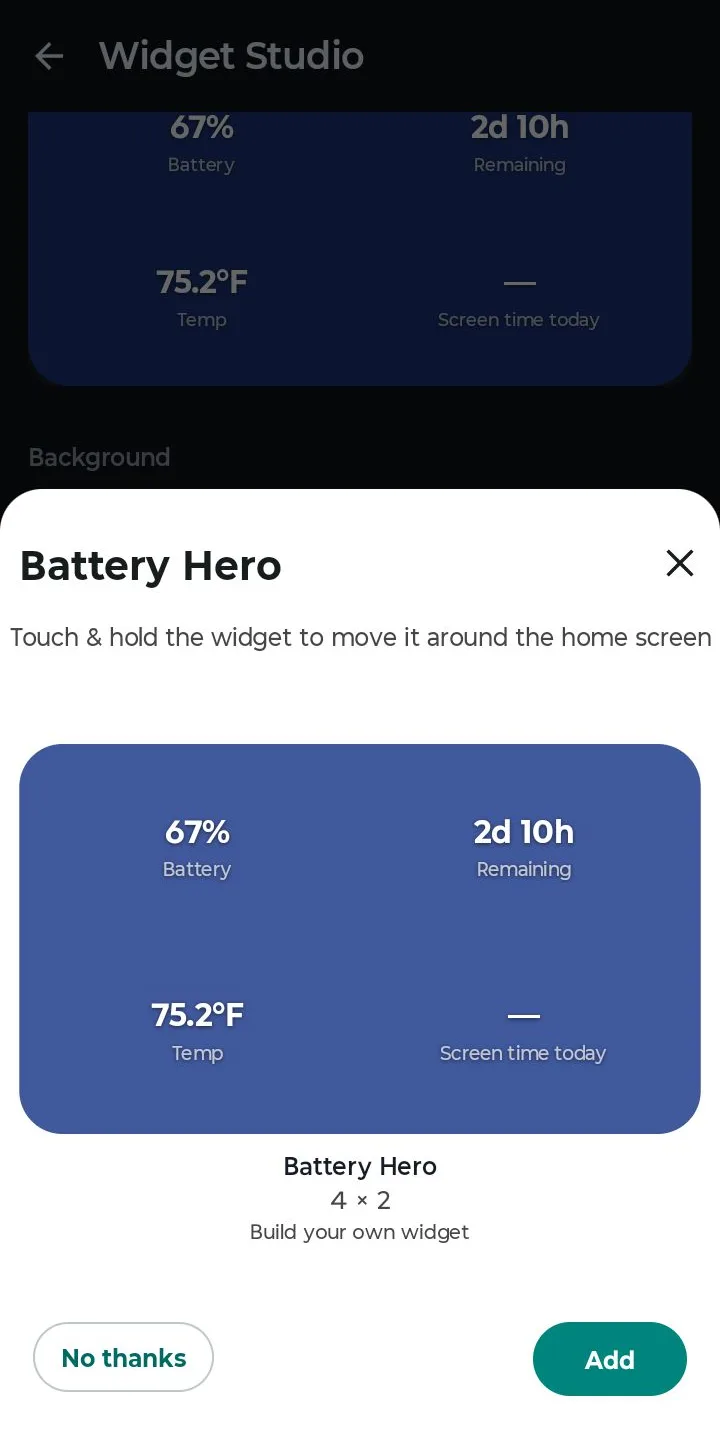
Some launchers don't let apps add widgets for you. If yours doesn't, Battery Hero tells you. In that case, long-press an empty spot on your home screen, open Widgets, find Battery Hero and drag Build your own widget onto the screen. Widget Studio opens; set it up and tap Save widget.
Good to know
- Make as many as you like. Each widget keeps its own size, stats and colors, so you can have a small battery % widget on one screen and a full 4×2 dashboard on another.
- Change it later. On Android 12 and later, on most launchers, long-press the widget and open its settings to reopen Widget Studio with your current setup.
- It stays up to date. Battery, time remaining and temperature refresh as Battery Hero records new readings; screen time updates every minute. The widget reuses the readings the app already takes, so it doesn't poll the battery on its own.
- Prefer a ready-made look? The five built-in widgets are one tap away in the same list. See the How to Use guide for the rest of the app.