How to use Battery Hero
A quick walkthrough of Battery Hero for Android — from installing the app to reading your battery health score, tracking drain, setting alerts, building your own widget, and syncing multiple devices.
- 1
Install Battery Hero from Google Play
Open the Play Store on your Android phone and install Battery Hero. The app is free, works on Android 6.0 (Marshmallow) and above, and needs no sign-in to start monitoring.
On first launch, grant notification permission so Battery Hero can send charge and overheat alerts, and (optionally) usage-access so it can show per-app battery drain.
- 2
Check your dashboard at a glance
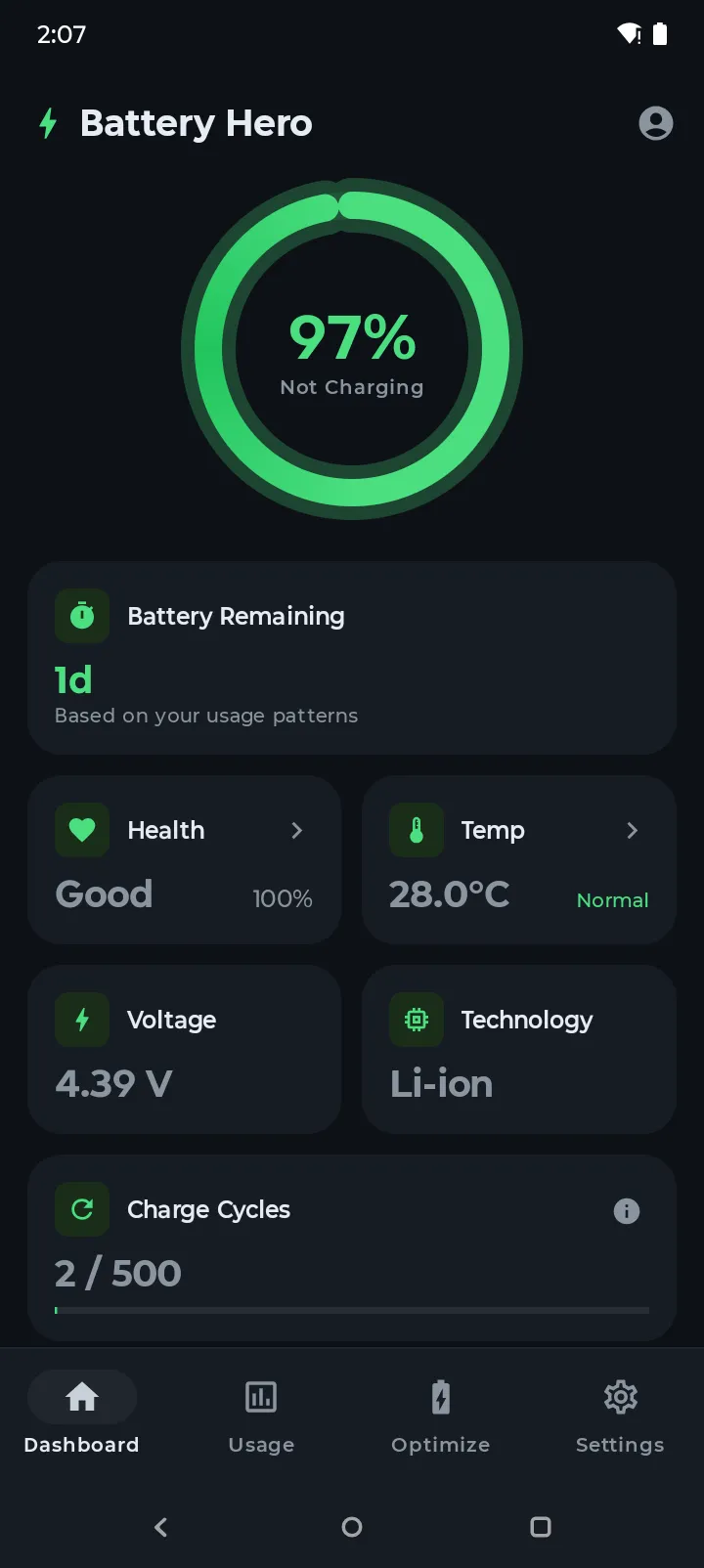
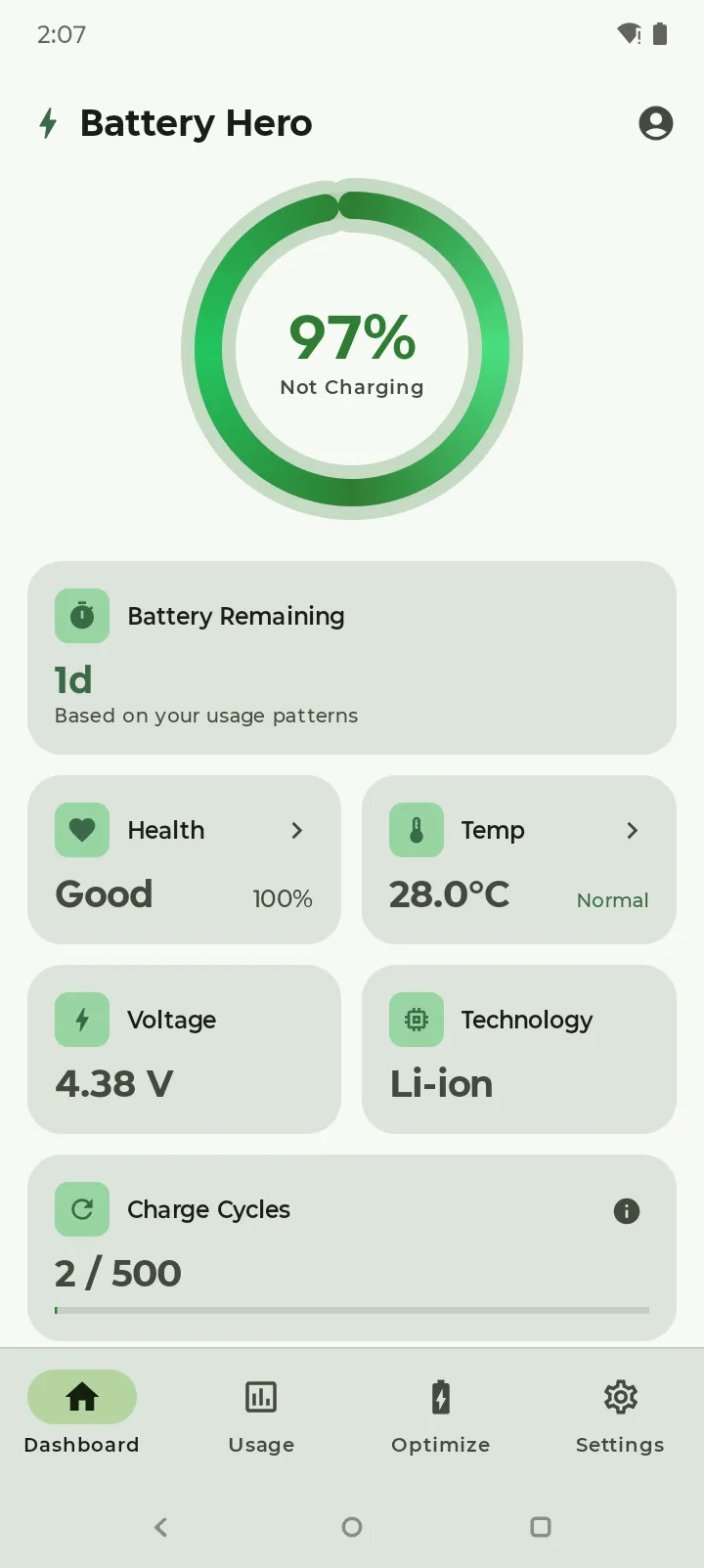
The Dashboard is your home screen inside the app. At the top you'll see your current battery percentage and whether the phone is charging, discharging, or idle.
Below that, you get an estimated Battery Remaining time based on your recent usage, plus cards for Health, Temperature, Voltage, battery Technology, and a Charge Cycles counter that tracks how many full charge equivalents your battery has been through.
Note: not all Android devices or manufacturers expose a charge cycle count to apps, so the cycle counter may be unavailable on some phones.
- 3
Track battery drain over time
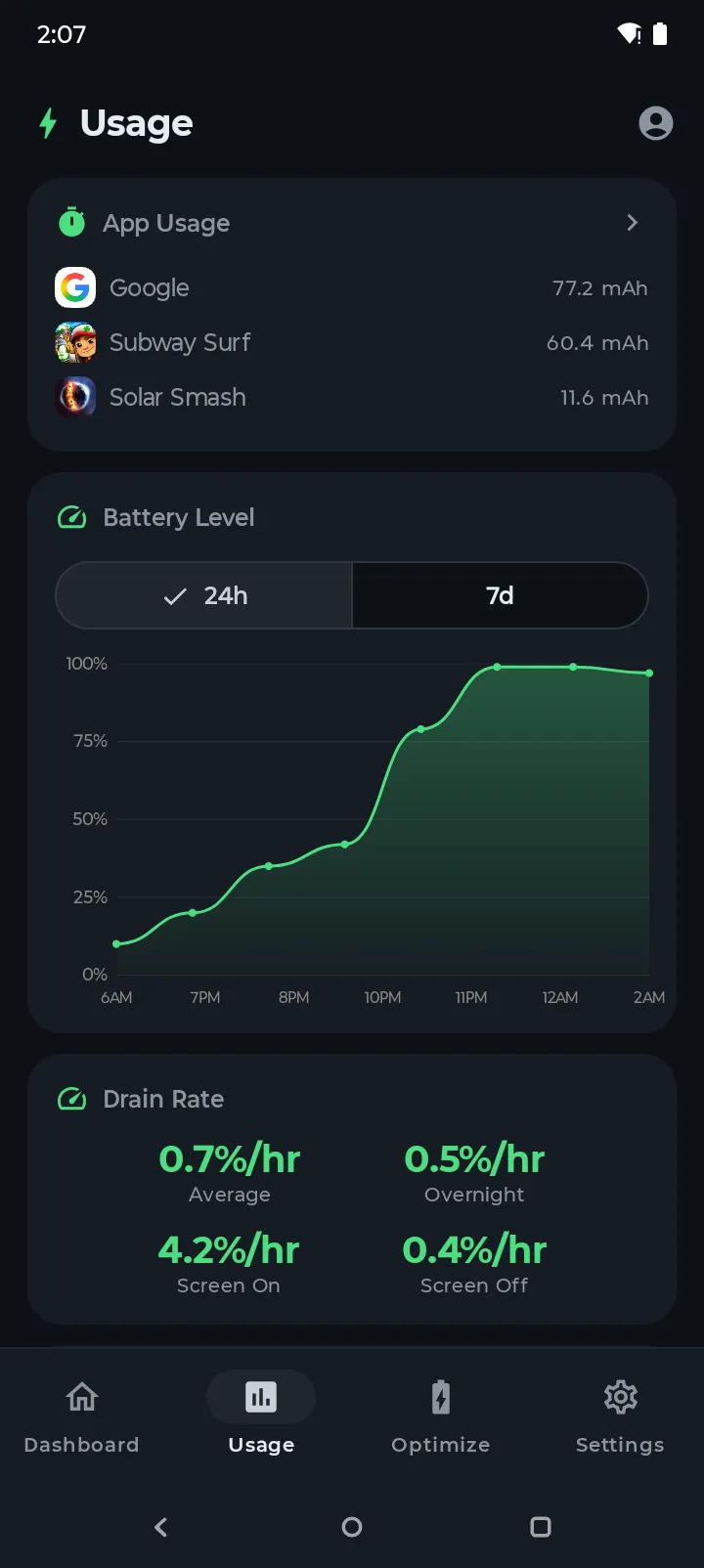
Tap the Usage tab at the bottom. The chart shows your battery level across the last 24 hours or 7 days — flat lines mean light usage, steep drops reveal heavy drain sessions.
The Drain Rate panel breaks it down: overall average, screen-on vs screen-off drain, and overnight drain. If your screen-off number is high, something is running in the background.
- 4
Watch live current
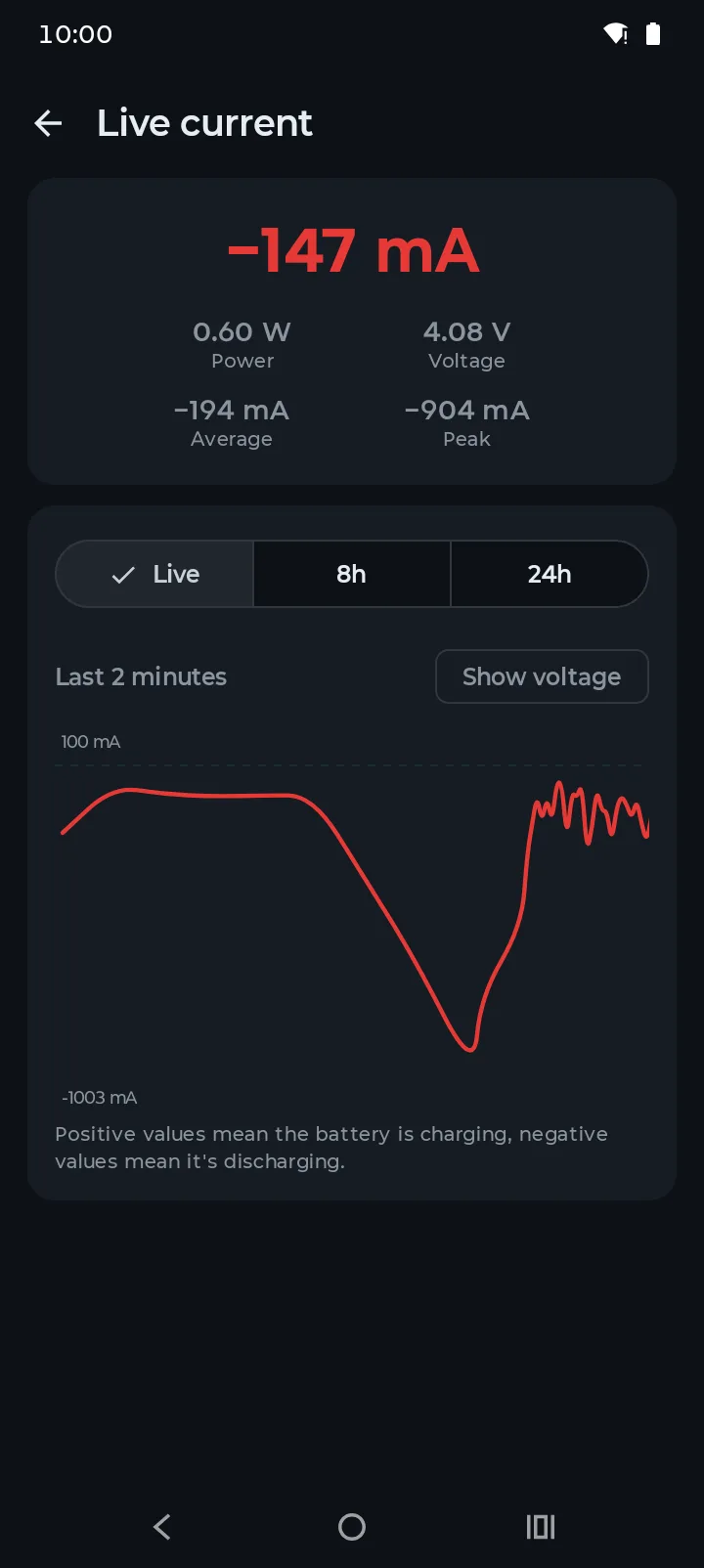
Further down the Usage tab, tap the Current card. The Live current screen draws a graph that updates every second — green above the line while charging, red below it while discharging — with power, voltage, average and peak.
Try it while you plug in a different charger or open a game: you can see the change straight away. Switch to 8h or 24h to look back over the readings Battery Hero saved in the background.
- 5
See which apps drain the most battery
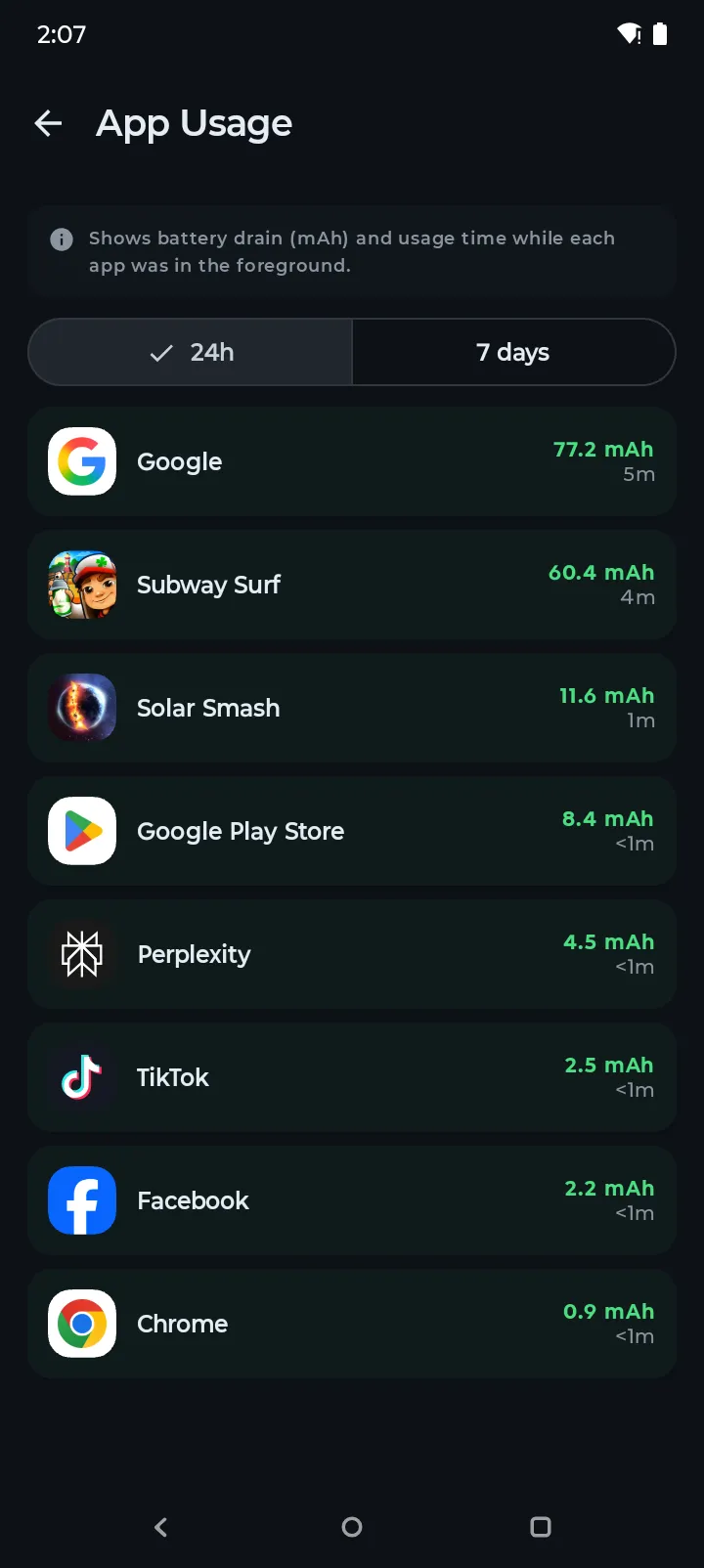
On the Usage tab, tap App Usage to see every app ranked by battery consumption in milliamp-hours (mAh), along with how long each app ran in the foreground.
Switch between 24-hour and 7-day views. Any app near the top that you don't actively use is a candidate for uninstalling or restricting in Android's battery settings.
- 6
Open the Tips tab for personalized recommendations
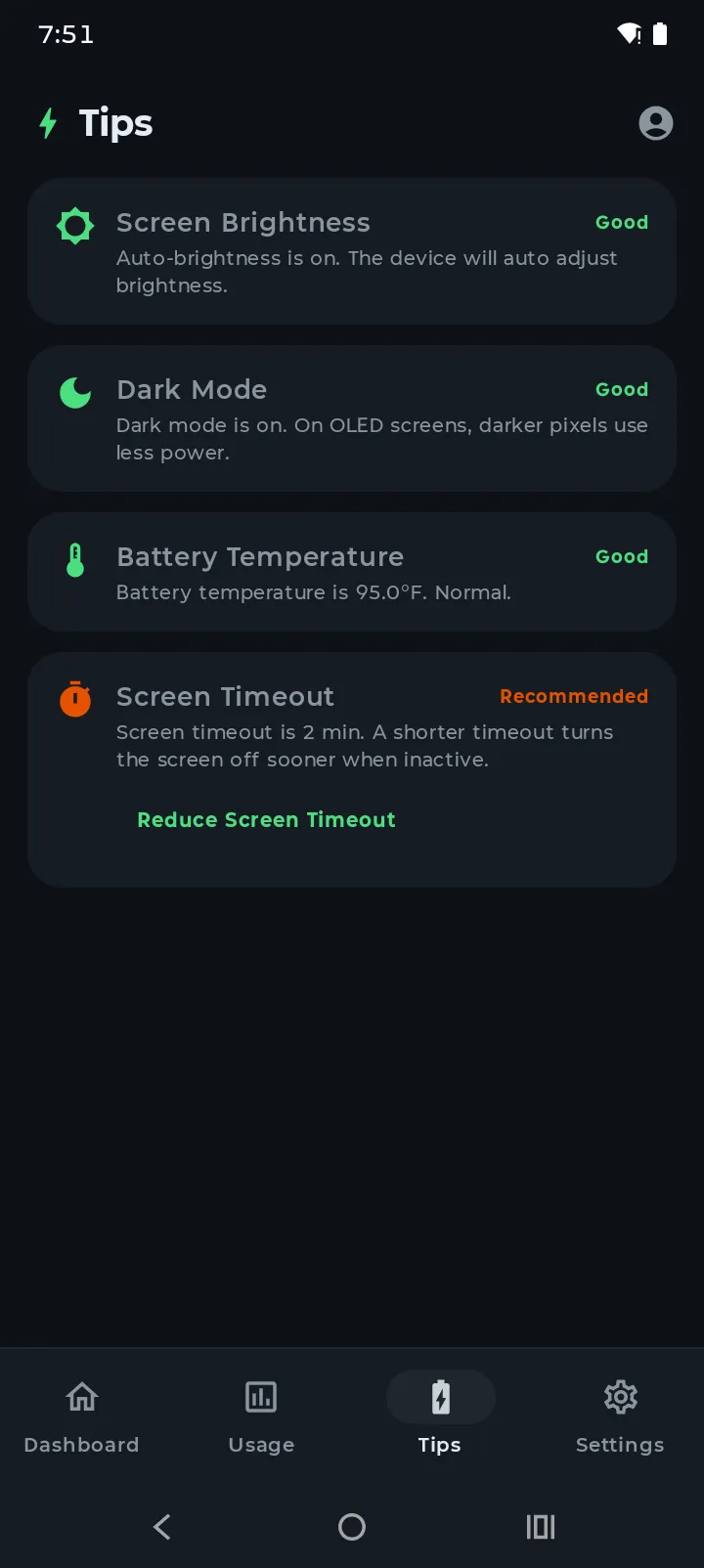
The Tips tab gives you a score from 0–100 and a checklist of battery-saving suggestions tailored to your phone's current settings.
Items marked Good are already configured well. Items marked Recommended include a one-tap shortcut — for example, reducing screen timeout, turning on dark mode on OLED displays, or keeping charging temperature below 35 °C.
- 7
Set up charge, low-battery, and overheat alerts
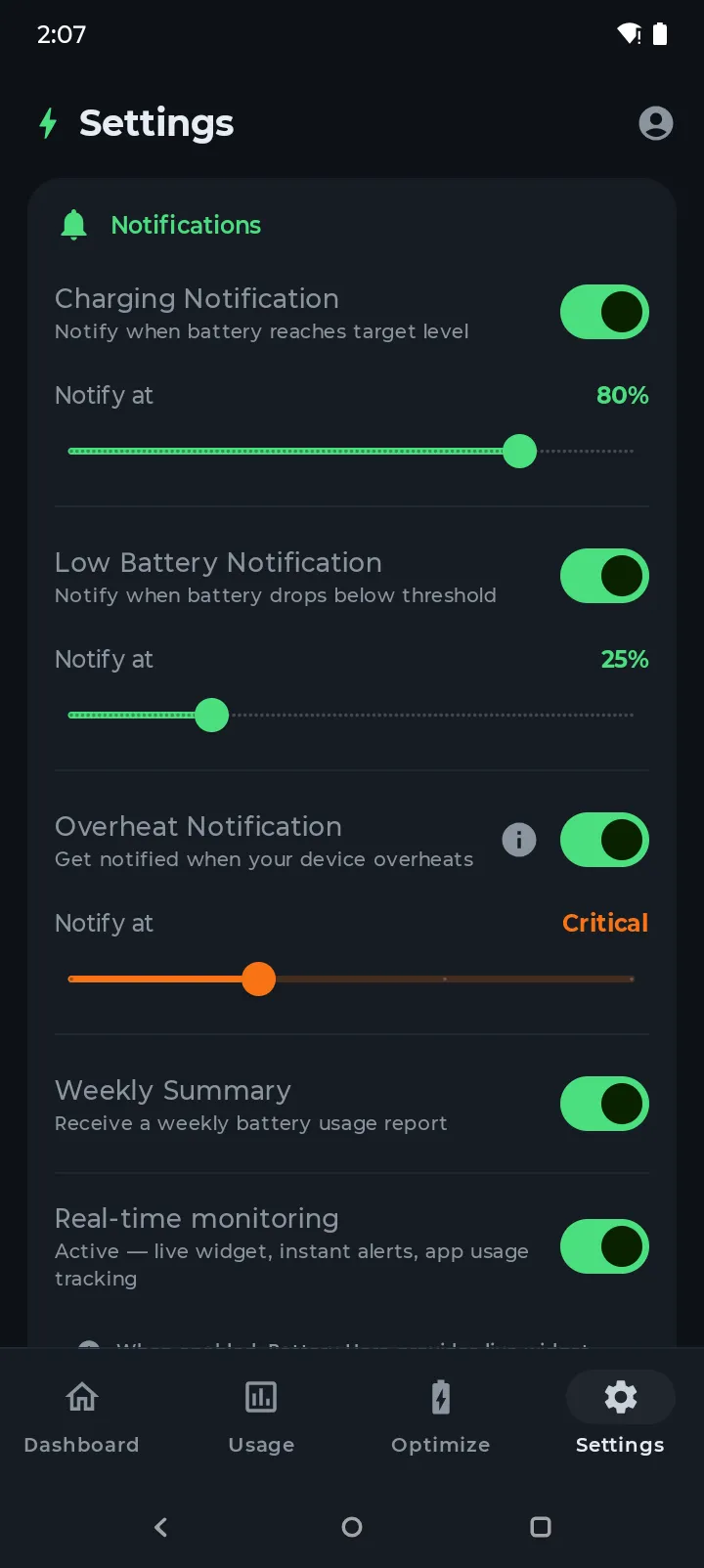
Go to Settings (gear icon). Under Notifications, you can enable:
- Charging Notification — get notified when your phone hits a target level (default 80%) so you can unplug and protect long-term battery health.
- Low Battery Notification — get a heads-up when your battery drops below a threshold you choose (default 25%), so you can find a charger before the phone dies.
- Overheat Notification — get alerted whenever your device temperature crosses a threshold, whether you're charging, gaming, or just out in the sun. Pick a sensitivity level: the default, Critical, fires when Android reports the phone is critically hot, and lower levels warn you earlier.
- Weekly Summary — a digest every 7 days of health, drain, and charging habits.
Each alarm has its own Alarm sound row, so you can pick a different tone for charging, low battery and overheating.
- 8
Add a battery widget
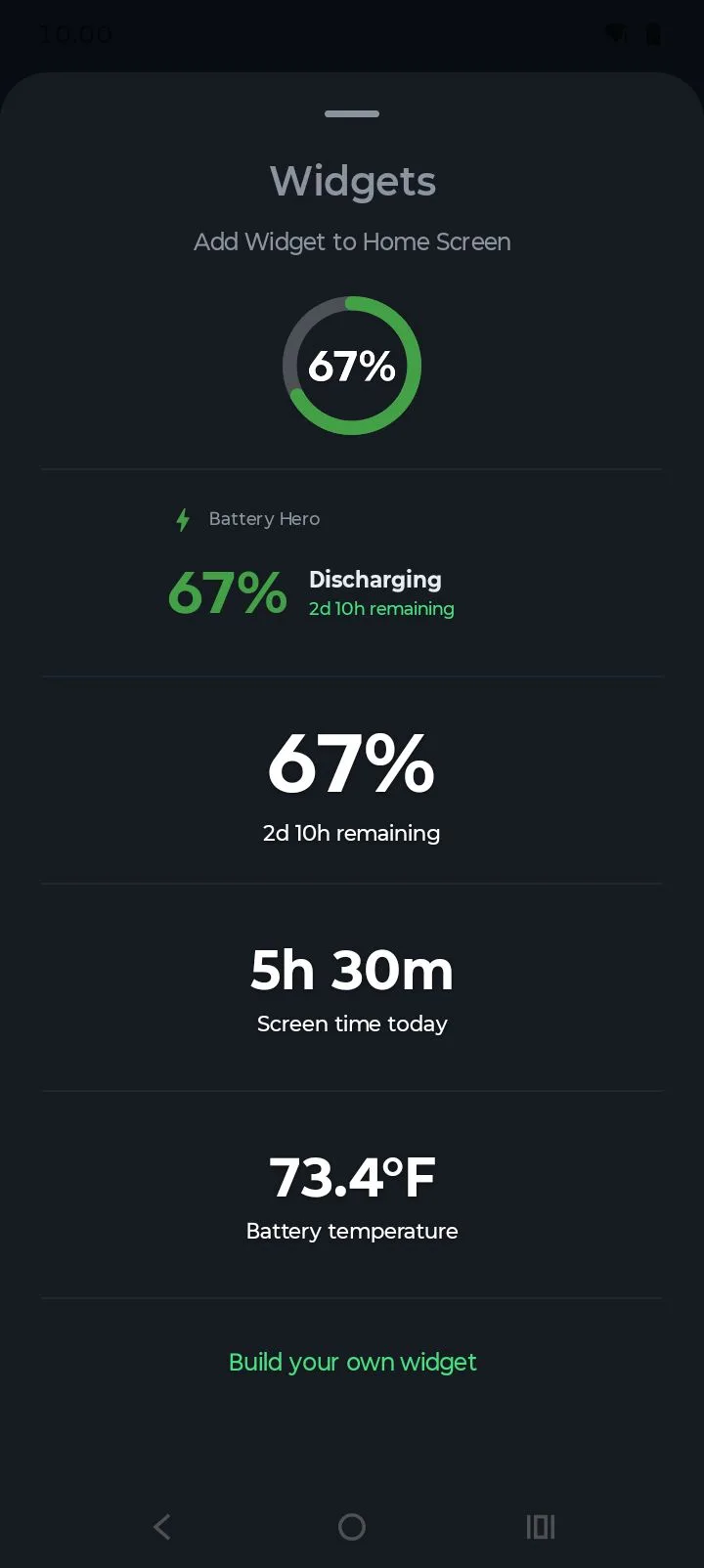
You don't need to open the app to check your battery. Tap the widgets icon in the top bar (or go to Settings → Widgets) to see every ready-made style: classic, minimal, circle, screen time and battery temperature.
Tap one and confirm with Add— Android places it straight on your home screen. Widgets update on their own as your battery changes. You can also add them from your launcher's widget list.
- 9
Build your own widget in Widget Studio
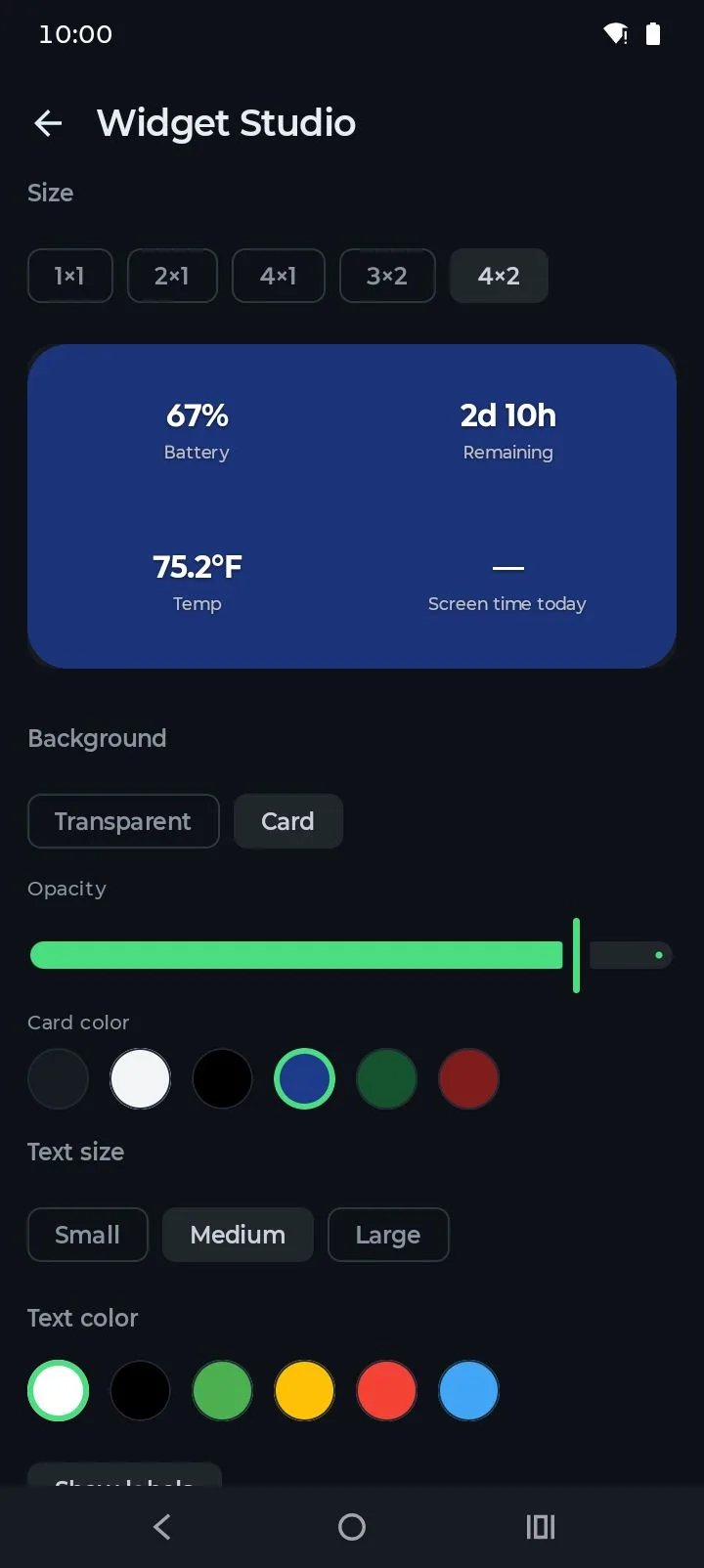
At the bottom of the widget list, tap Build your own widget. In Widget Studio, pick a size from 1×1 to 4×2, then drag the stats you want — battery %, time remaining, battery temperature and screen time today — onto the widget.
Choose a transparent or card background, the card color and opacity, the text color and size, and whether to show labels. The preview is the real widget, so what you see is what lands on your home screen. Tap Add to home screen when you're done. Read the full guide.
- 10
Sign in to sync multiple devices
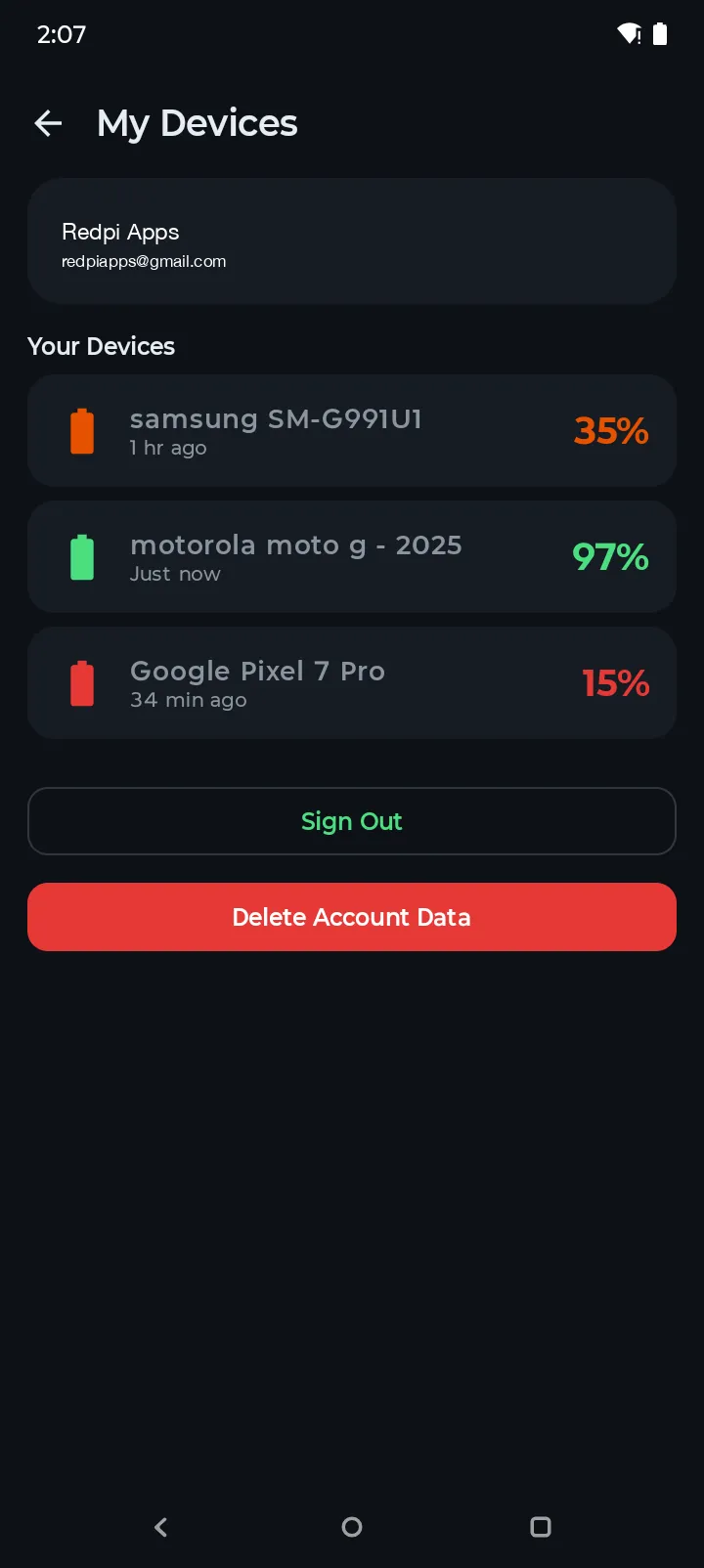
Tap the profile icon in the top-right, then Sign in with Google. Once signed in on each of your Android devices, they all appear under My Devices with their current battery level and time since the last sync.
This is useful if you manage a phone and a tablet, or keep tabs on a family member's device. Only the device model and current battery percentage are synced — no detailed history leaves your phone. You can sign out or delete all cloud data at any time from the same screen.
- 11
Switch between dark and light themes
Battery Hero ships with a deep green dark theme by default, which saves battery on OLED screens. Prefer a lighter look? Open Settings and toggle the theme — the whole app, including charts, follows your choice.
If you're on an OLED phone, we recommend keeping the dark theme: OLED displays only light up the pixels they need, so a dark UI can save up to roughly 40% of screen-related battery drain at high brightness.
Frequently Asked Questions
Is Battery Hero free?
Yes. Battery Hero is completely free to download and use on Android. No ads and no paywall — every feature is available to everyone.
Does Battery Hero work without signing in?
Yes. All battery monitoring, health tracking, charts, and alerts work fully offline on a single device. Sign-in is only required if you want to see multiple devices from one account.
How accurate is the battery health score?
Health compares how much charge your battery holds now with its design capacity. Readings settle after a few charges as Battery Hero collects more data. If your phone doesn't report its design capacity, Battery Hero asks you to enter it so the percentage is right for your battery.
Why is my battery remaining estimate off for the first few days?
Battery Hero calculates time remaining from your actual usage and drain patterns, so it needs a baseline to be accurate. For the first few days after install it's working from limited data, and screen-on time, app mix, brightness, and temperature can all shift the estimate. After roughly a week of normal use, the estimate stabilizes and tracks your routine much more closely.
How do I delete my cloud data?
Open the profile screen, tap Delete Account Data. This permanently removes your email, device list, and synced battery percentages from our servers. Local data stays on your phone until you uninstall.
Ready to protect your battery?
Download Battery Hero and start tracking your Android battery health in under a minute.
Get it on Google Play